Short Answer: What Is IPTV on Firestick?
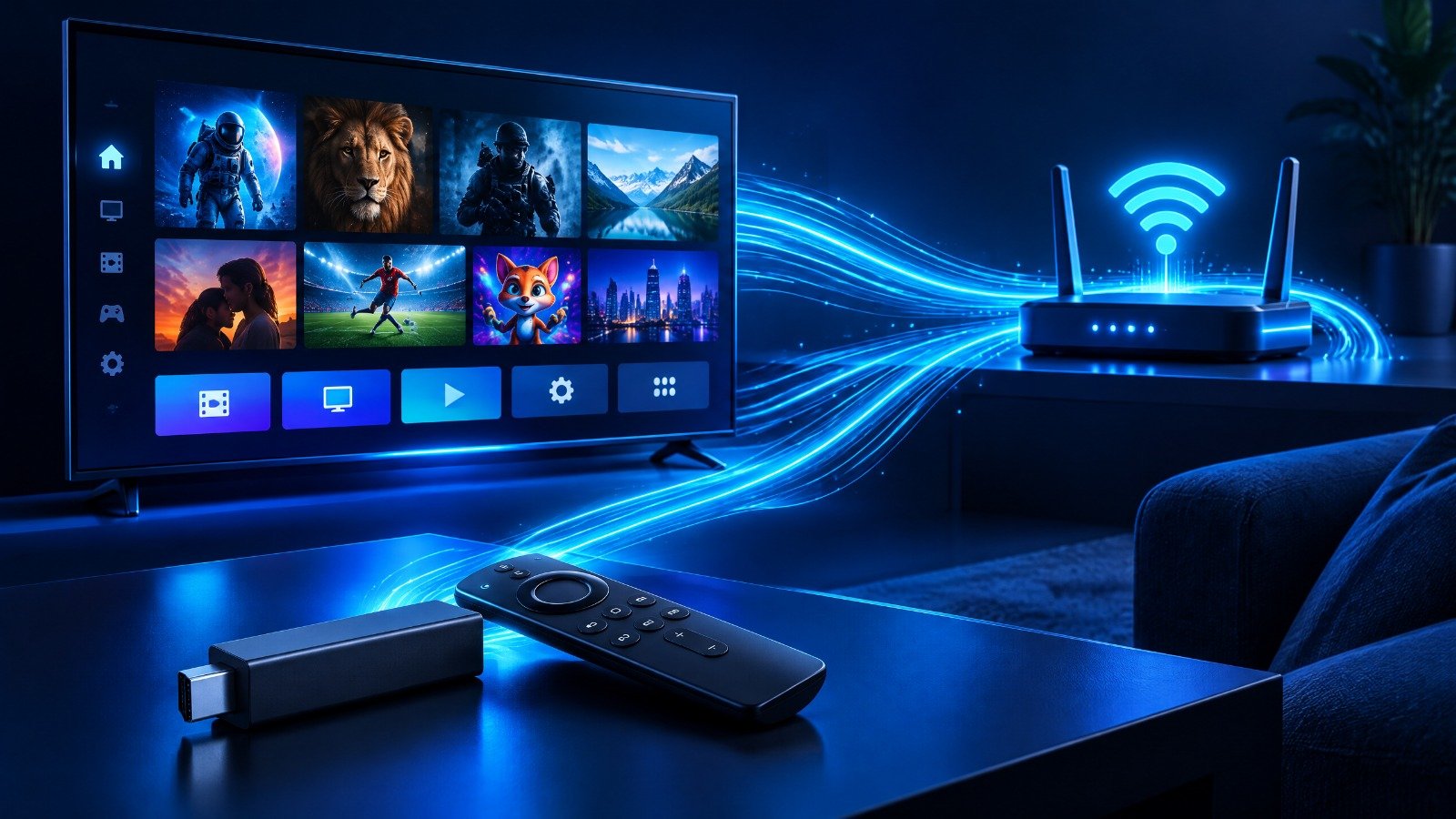
A Fire TV Stick turns the television you already own into a connected streaming screen. IPTV on Firestick simply means using that stick to receive live channels and on-demand entertainment through your internet connection. A good setup comes down to five things: the device itself, a stable connection, a supported player, clear account details from your provider, and a quick test of the guide and channels before everyone settles in to watch.
By the time Elena settled into her new apartment in Atlanta, she had already bought the television, arranged the sofa, and connected the Wi-Fi. The only thing missing was a simple way to bring live channels and on-demand entertainment to the screen without filling the room with extra equipment. Her small Fire TV Stick became the starting point. A few sensible checks later, she had a setup that was easier to use, easier to move, and better suited to the way she actually watched TV.
1. Why Firestick Works Well for IPTV
A Fire TV Stick turns the television you already own into a connected entertainment screen. It is small, uses a familiar remote, and can be moved from one room to another when needed. For a renter, a student, or a family with more than one television, that flexibility is often more useful than a bulky cable box.
The device is only one part of the experience. A stable internet connection, a supported player, clear account details, and a service that explains its terms all make a difference. When these pieces fit together, watching live TV on Firestick feels straightforward rather than technical.
A good setup starts with the room
Before installing anything, Elena checked the HDMI port, placed the Firestick where it could receive a strong Wi-Fi signal, and made sure the television had enough space around it for ventilation. These small details are easy to overlook, but they can prevent many of the problems people later blame on the streaming service.
2. Choosing an IPTV Service for Firestick
When someone asks for the best IPTV for Firestick in the USA, the honest answer depends on the household. One viewer may care most about sports and a clear guide. Another may want movies, simple navigation, or help getting started. A sensible choice should answer a few practical questions before payment:
- Device support: Does the provider support your Fire TV model and the player you plan to use?
- Clear terms: Are the plan length, price, device terms, and included features easy to understand?
- Real support: Is there a real support route if the login or player does not work?
- Transparency: Does the provider explain its terms, privacy information, refund conditions, and content rights?
Smart4K lists Amazon Fire TV Stick among its supported device categories and provides setup guidance through its multi-device support page. Check the current instructions for your model rather than following an old video or downloading an unfamiliar file from a random website.
3. A Simple IPTV Firestick Setup
The names of apps and installation steps can change, so the provider's current instructions should always be followed. The basic process is still easy to understand:
-
1
Connect the Firestick
Plug it into an HDMI port and use the supplied power adapter.
-
2
Connect to the internet
Join a reliable Wi-Fi network and complete the Fire TV updates.
-
3
Use a supported player
Choose the application recommended for your service and device.
-
4
Add your account details
Enter the username, password, playlist, or server information supplied with your subscription.
-
5
Test the experience
Open the guide, try a few channels, check an on-demand title, and make sure the remote responds normally.
🔒 Keep the installation safe: Use official app listings and the provider's current help pages whenever possible. Amazon's official Fire TV page is a useful reference for the device family and available features. Check the application name and publisher before installing it. If the instructions you receive look different from your Fire TV menu, ask support for an updated method instead of guessing.
4. Apps, Favourites and Everyday Viewing
The best IPTV app for Firestick is usually the one that feels natural from the sofa. Some viewers prefer a simple channel list. Others want an electronic guide, favourites, catch-up options, or parental controls where those features are supported by the application.
After installation, spend a few minutes organising the experience. Save favourite channels, remove unused apps, keep the remote close to the television, and write down the correct support contact. A tidy home screen means less searching when everyone is ready to watch something.
Make the experience comfortable for everyone
For a family, the most useful features are often the least dramatic ones: clear navigation, reliable playback, a guide that is easy to read, and controls that children cannot accidentally change. For a single viewer, quick access to sports, news, or favourite shows may matter more. The right setup follows the way the home is actually used.
5. Better Speed and Less Buffering
One evening, Elena noticed a stream pausing every few minutes. Before changing her plan, she checked the simple things first. The router was behind a cabinet, several devices were downloading updates, and the Firestick had been running for days without a restart. Moving the router into a clearer position and restarting both devices solved most of the problem.
⚡ Try this before contacting support
- Restart the Firestick and the router.
- Pause heavy downloads and updates on other devices.
- Check the Wi-Fi signal strength where the TV sits.
- Test another channel to see whether the issue is isolated.
- Confirm that Fire TV and the player app are updated.
Full HD is generally easier to maintain than 4K, especially when several people are gaming, making video calls, or watching another stream. Keep the Firestick ventilated and test playback at different times. If only one channel fails while others work, the issue may not be your home connection.
A practical speed reminder
A speed-test result is useful, but stability matters just as much. The FCC Broadband Speed Guide provides general benchmarks for video streaming, including HD and 4K use. A strong connection that drops repeatedly can feel worse than a slightly slower connection that stays consistent. If the problem continues after basic checks, contact the provider and describe the device, app, time, and stream affected.
6. IPTV Firestick Pricing in the USA
The Firestick itself does not create a separate IPTV price. Your cost normally depends on the service plan and its duration. Smart4K's USA page currently displays these rounded USD options:
| Plan | USD Price | Suitable For | Listed Highlights |
|---|---|---|---|
| 1 Month | $7.99 | Trying the setup | Live TV, on-demand, EPG, device support |
| 3 Months | $18.99 | Quarterly viewing | Live TV, on-demand, HD/4K compatibility, setup help |
| 6 Months | $39.99 | Regular viewers | Live TV, on-demand, EPG, priority support |
| 13 Months | $59.99 | Longer-term value | Live TV, on-demand, HD/4K compatibility, VIP support |
Confirm the current price, payment terms, taxes, features, and content availability before ordering. A monthly plan can be a sensible first step for a new Firestick setup. A longer plan may suit a household that has already tested the service and knows it works well on its devices.
7. Is IPTV on Firestick Legal?
Fire TV Stick is a legal streaming device, and IPTV is a legal way to deliver television through the internet. The important question is whether a particular provider has the appropriate rights or licences for the channels and on-demand content it distributes.
⚖ Legal Checklist Before You Subscribe
- Read the provider's terms, privacy policy, refund conditions, and contact information.
- Review the content-rights statements before subscribing.
- The U.S. Copyright Office copyright guide explains the basic rights that protect original works and audiovisual content.
- Avoid services that promote stolen credentials or unauthorised access.
- If you need advice about a specific provider or an IPTV business, speak with a qualified US attorney.
8. A Setup That Fits Real Life
Elena did not need the biggest promise on the internet. She needed a setup that worked when friends visited, when the Wi-Fi was busy, and when she wanted to move the device to the bedroom. That is the useful way to judge IPTV on Firestick in the USA: check the device, connection, app, plan, support, and service information together.
Start with the equipment you own, follow the current setup instructions, test a few streams, and keep the details that matter easy to find. You can also review the Smart4K FAQ, 4K/8K streaming guide, and zero-buffering guide for related help. When the technical side is prepared properly, the rest of the evening can stay focused on the programme rather than the settings menu.
THE BOTTOM LINE
IPTV on Firestick works best when the whole chain is solid: a supported device, a stable connection, a trusted app, a plan with clear terms, and support that answers when something goes wrong. Test with a monthly plan first, keep your receipt and setup notes handy, and upgrade only when the service has proven itself in your home.
View USA Plans & Pricing Read the Setup FAQ