Quick Answer: Do You Need a Fire Stick for Smart TV?
In most cases, you do not need a Fire Stick or another box if your Smart TV can install a compatible IPTV application from its official app store. The best experience depends on app availability, stream quality, EPG support and your home network.
I tested the practical differences between Samsung Tizen IPTV, LG webOS IPTV and Android TV IPTV so you can choose a setup with fewer surprises. The steps below are for legitimate services and content you are authorized to access. App availability varies by country, TV model and software version.
1. Do You Need a Fire Stick for IPTV?
Not necessarily. A modern Smart TV can often run an IPTV player directly, which means one remote, a faster startup and fewer cables behind the television. A separate streaming device can still be useful if your TV is too old, has limited storage, does not list the application you need or feels slow during playback.
The important limitation is that Samsung and LG generally restrict installations to apps available through their own stores. Android TV and Google TV normally provide a broader app ecosystem, but you should still use trusted applications and avoid unknown APK files.
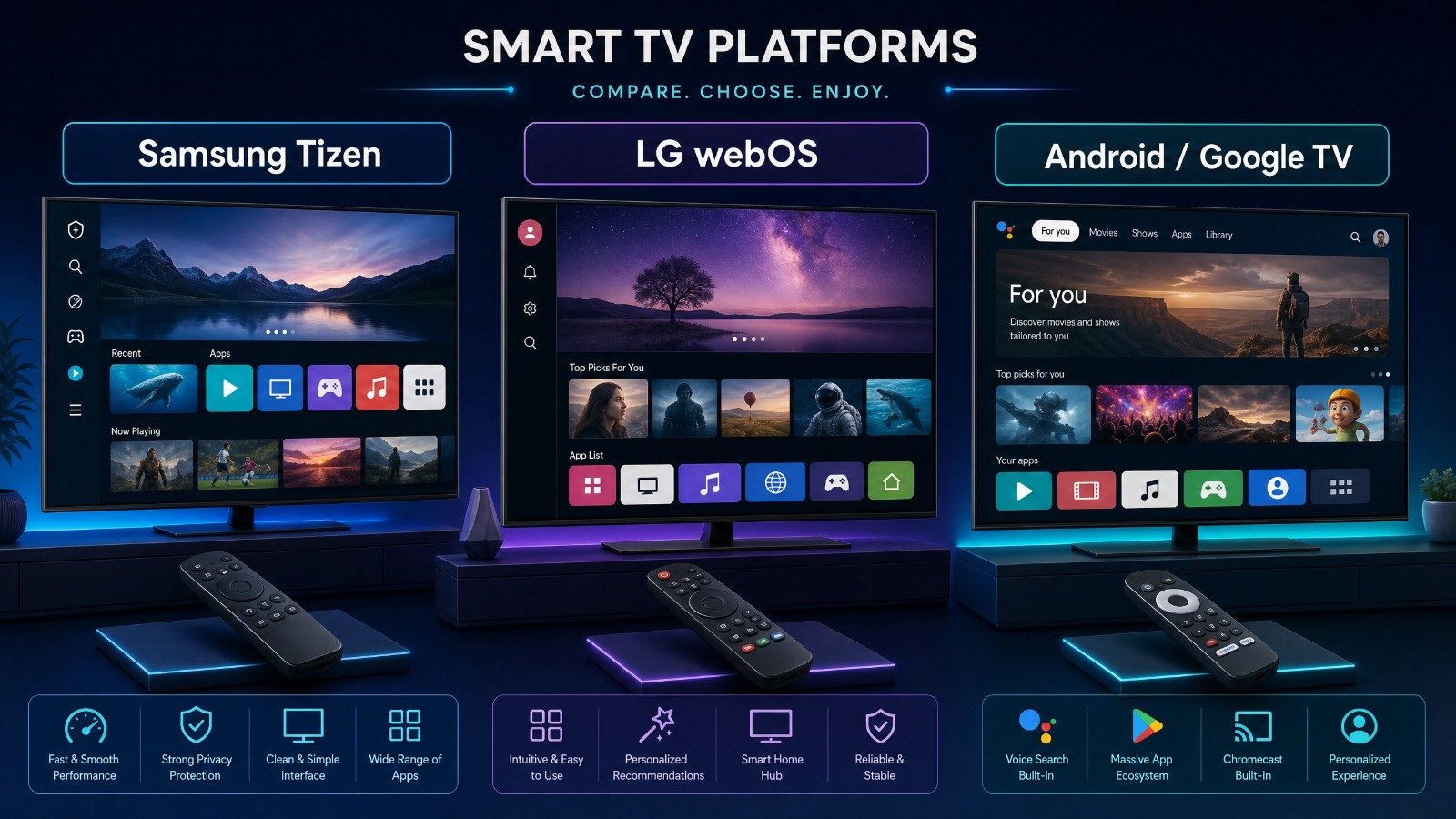
2. How to Set Up IPTV on Samsung Smart TVs (Tizen)
Samsung Tizen is straightforward when the IPTV player you need is listed in Samsung’s app store. Samsung’s official instructions say that only apps available in its App store can be installed on a Smart TV, and the normal route is Home → Apps → Search → Install.
Connect and open Apps
Connect the TV to a stable internet connection and open the Apps section from the Home screen.
Search for IPTV player
Search for a compatible IPTV player, such as an app supported by your chosen legal service, then select Install.
Note device identifier
Open the player and note the on-screen device identifier or MAC address only if the application specifically requests it.
Enter playlist details
Enter your authorized playlist, login or provider details exactly as supplied. Recheck every character before saving.
Restart and populate EPG
Restart the application and allow time for the channel list and EPG (Electronic Programme Guide) to populate.
💡 Samsung Tizen tip: If an application is missing from the store, do not assume that a random sideloading tutorial is safe or compatible. Check the app’s official support page, your TV model and your region first. Samsung also provides an auto-update setting inside App Settings.
3. How to Install IPTV on LG TVs (webOS)
For LG webOS IPTV, the process is similar but uses the LG Content Store. LG’s current support guidance says to sign in, search for an app, select it and choose Install; the app then appears in the launcher.
Open LG Content Store
Press Home and open LG Content Store while the TV is connected to the internet.
Search for player
Use Search to look for a compatible IPTV player. App names and availability can differ by region.
Install and accept
Select the application, choose Install and accept any required user agreements.
Enter account details
Open the player, enter your authorized playlist or account details and confirm the guide settings.
Restart and verify
Restart the app if the playlist does not appear immediately, then verify the M3U or EPG information with your provider.
LG televisions can deliver an excellent viewing experience when the source is reliable and the network is stable. If playback struggles during busy evening hours, test the TV with Ethernet before blaming the application.
4. Android TV and Google TV: The Easiest IPTV Route
If your priority is app choice, Android TV or Google TV is usually the most flexible option. Google’s official help page explains that apps can be installed from the Google TV interface through the apps area.
Open Google Play Store
Open the Google Play Store or the Apps area on your Android TV or Google TV device.
Choose reputable player
Choose a reputable IPTV player that is compatible with your service. Popular examples include TiviMate and IPTV Smarters, but availability and features can change.
Sign in with provider details
Sign in with your authorized Xtream Codes details, M3U playlist or the method supported by your provider.
Configure EPG and VOD
Configure the EPG and VOD sections only if your subscription includes them.
Update and maintain
Keep the TV software and player updated, and remove apps you no longer use.
5. Samsung vs LG vs Android TV: Side-by-Side Comparison
| Platform | Typical App Route | Setup Difficulty | Best For |
|---|---|---|---|
| Samsung Tizen | Samsung Apps / Smart Hub | Medium | Viewers who want a native TV experience and already own a compatible Samsung model. |
| LG webOS | LG Content Store | Medium | Viewers who prefer LG’s simple launcher and have a supported player available in their region. |
| Android / Google TV | Google Play Store / Apps | Easy to flexible | Viewers who want wider player choice, EPG controls and optional external-device support. |
6. Common IPTV Problems and Practical Fixes
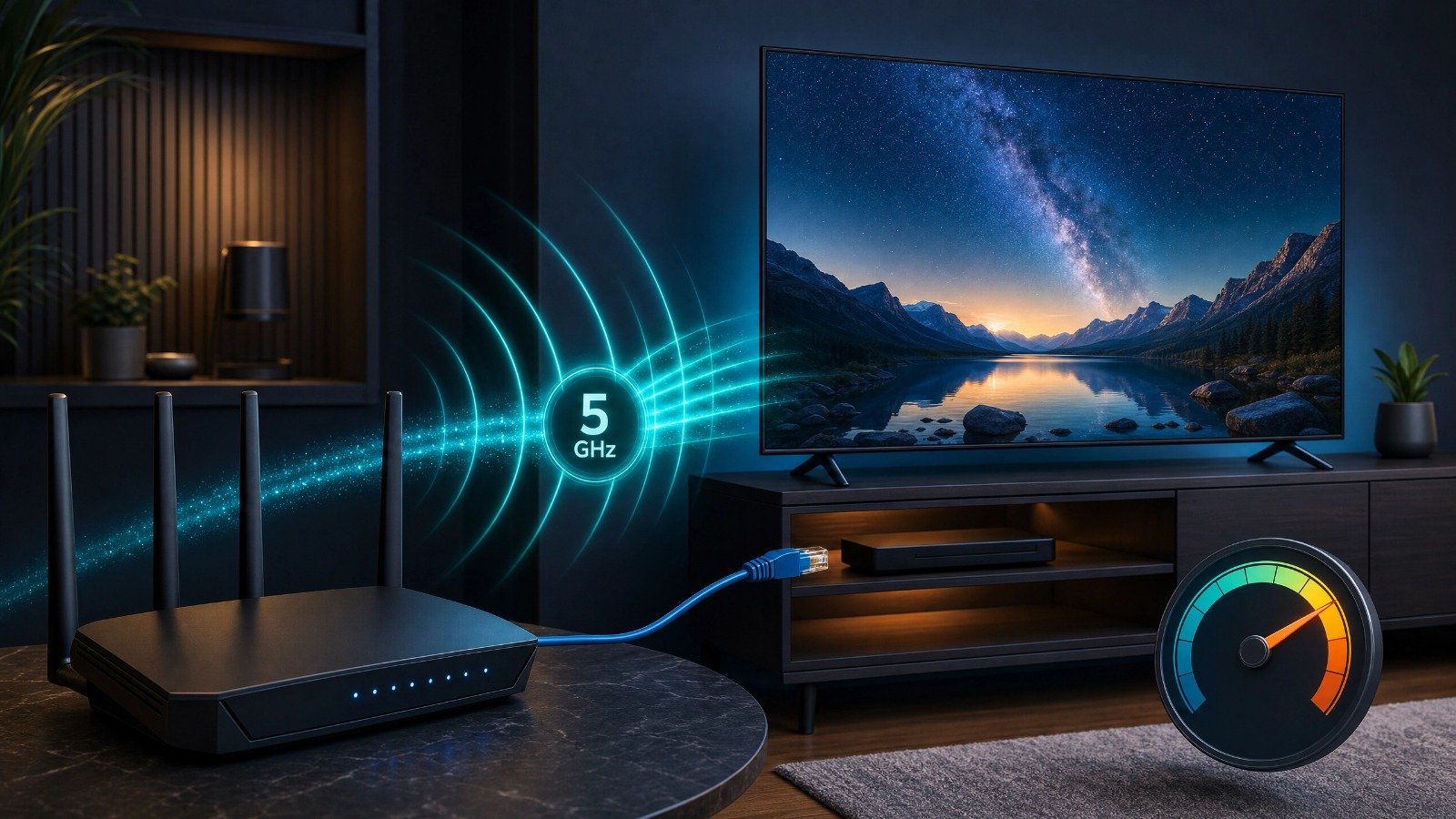
❗ 1. The IPTV app freezes or buffers
- Start with the network. Move the TV to a stronger 5 GHz Wi-Fi connection when practical.
- Pause other heavy downloads and test Ethernet directly to the router.
- Also restart the TV, router and app. Do not assume every freeze is a provider fault.
📅 2. The EPG is empty
- Some players need the EPG URL separately from the playlist.
- Confirm that the guide link is correct, the subscription is active and the TV’s date and time are accurate.
💻 3. The app crashes on an older TV
- Large playlists can stress older hardware.
- Ask whether a lighter, category-specific playlist is available, reduce unnecessary VOD artwork and keep the app updated.
🎥 4. 4K picture quality is inconsistent
- Native 4K depends on the source stream, player support, TV decoding and network conditions.
- Netflix currently lists 15 Mbps or higher as its recommended speed for UHD 4K, but IPTV performance can require more headroom when other devices share your connection.
🔗 5. The playlist will not load
- Check for a typo in the M3U URL, username, password, MAC address or Xtream Codes details.
- Confirm that the subscription has not expired and ask the provider whether the service requires a separate server URL or EPG link.
7. What to Look For in an IPTV Provider
The best IPTV provider is not necessarily the one with the longest channel list. Prioritize compatibility, support and transparent service information.
- Support for more than one compatible player, so you can switch TVs later.
- A stable login method such as an authorized Xtream Codes API or M3U workflow.
- An EPG that actually populates and matches the channels you receive.
- Clear information about whether streams are native HD, 4K or upscaled.
- Responsive support that can troubleshoot your specific TV model.
- Transparent pricing, cancellation terms and a clear statement that content is licensed for your location.
SMART4K IPTV: One Account Across Compatible TVs
Sponsored information: SMART4K IPTV presents itself as a multi-device option for Samsung, LG, Android TV and Fire Stick users, with plans advertised from CAD $10.99 and a claimed catalogue of 22,500+ channels across 4K and 8K. Confirm current pricing, availability, content rights and device compatibility directly before purchasing.
Important: This guide is for lawful streaming setups. Only use IPTV services and playlists that you are legally entitled to access in Canada. Channel counts, pricing, app availability and supported devices can change; verify current details with the provider and the official platform store.
8. Questions People Ask About IPTV on Smart TVs
Most of the time, no. If your television supports a compatible IPTV player through its official app store, direct installation is usually enough. A box can help when the TV is older, slow or missing the required application.
It depends on the provider and source. Ask whether the stream is native 4K, check the player and TV capabilities, and remember that a stable network is essential.
Android TV or Google TV generally offers the broadest application flexibility. Samsung and LG can work well when the required player is available in their official stores.
The EPG may need a separate URL, or the link may be expired or incorrectly entered. Confirm the EPG details and subscription status with your provider.
Often yes, if a compatible player is available in the official Samsung Apps or LG Content Store for your model and region. If it is not listed, verify compatibility rather than installing an untrusted file.
CONCLUSION
Samsung and LG Smart TVs can be convenient for IPTV when the right application is available in the official store, but they offer less installation flexibility than Android TV. Android TV and Google TV are usually the easiest choices when you want a wider app ecosystem, stronger EPG controls and the option to use a separate box later.
The television brand is only one part of the experience. Prioritize a legitimate provider, reliable stream quality, accurate guide data, stable internet and support that can help with your exact model. That combination matters more than a headline channel count.
View Plans & Pricing → Ask SupportReferences
Samsung: Use apps on your Smart TV LG: How to use the Content Store Google TV Help: Install apps Netflix: Internet speeds